
Did your upload come back with 413 request entity too large, with nothing saved and no clue what “too large” actually means here?
Don’t worry, nothing was damaged and nothing was lost. Every server has a maximum size for anything sent to it, and what you sent was over it, so it refused before reading the whole thing. The awkward part is that the limit lives in up to four different places on a server, which is why people raise one of them and nothing changes.
Who you are decides what to do next:
- If the site is not yours, make the file smaller, which takes about a minute
- If the site is yours, find out which piece said no, then raise that one
In this article you will learn both, and how to prove afterwards that the new limit really took effect, because on shared hosting it often does not.
So let’s get started.
If the site is not yours
You cannot raise somebody else’s limit, so shrink what you are sending.
For a PDF, run it through our PDF compressor, which works in your browser and uploads nothing. For a photo, use the image resizer, because most phone photos are far larger than any web page needs. For an animation, the GIF resizer and cropper shrinks it while keeping it moving.
If you are sending several files, upload them one at a time. The limit applies to each request rather than to the total, so five small uploads often succeed where one big one failed.
None of this helps when the site’s limit is very small, for example two megabytes for a document. Then ask the owner to raise it, or send the file another way.
Which piece said no
Before changing anything, work out who refused you, because the clue is in the page you got.
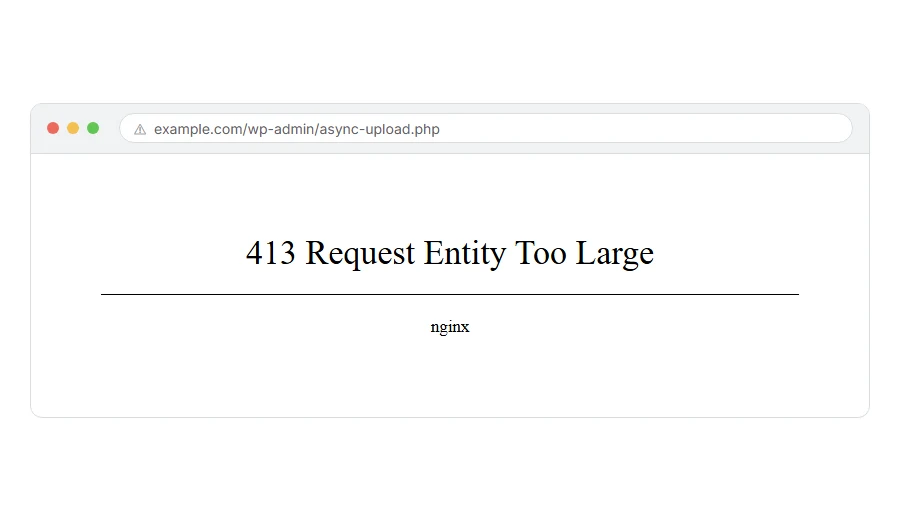
A plain, tiny page saying 413 with a server name at the bottom is usually Nginx. A styled WordPress message about exceeding the maximum upload size is PHP. If you have access to the error log, the entry names the piece that refused.
Where it actually breaks
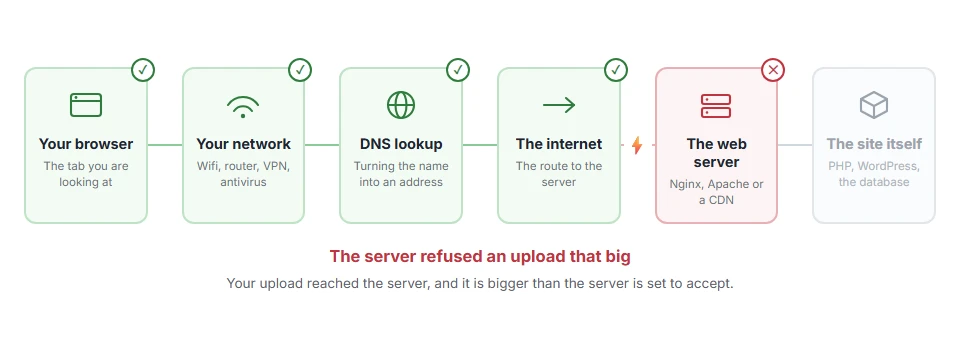
Every page you open makes the same journey. Knowing which step this error stops at tells you which half of the list below is worth your time, because the green steps are already proven to be working.
1) Nginx, one line
Nginx has its own limit and it defaults to one megabyte, which is the single most common cause of a 413 on a modern server.
In your site’s server block, or in the main http block, set client_max_body_size 64M;. Then run sudo nginx -t to check the file and sudo systemctl reload nginx to apply it.
Setting it inside one server block only works if every site you care about has the same line. If you have several sites and only one is fixed, you have put it in the wrong place.
2) PHP, two settings that must agree
PHP has two limits and people raise one and forget the other.
In php.ini, set upload_max_filesize = 64M and post_max_size = 72M. Keep post_max_size above upload_max_filesize, because the whole request carries the file plus the form fields around it. Restart PHP afterwards with something like sudo systemctl restart php8.2-fpm.
Many hosts ignore a php.ini you create in your own folder, so if nothing changes, this does not work on your setup and the panel in step 4 is where the real values live.
3) Apache, if you use it
Apache’s own limit is LimitRequestBody, and it is often set by the host rather than by you.
In .htaccess or in the site configuration, LimitRequestBody 67108864 gives you 64 megabytes, since that number is in bytes.
Be careful here: on shared hosting, .htaccess changes to this are frequently ignored or cause a 500 error. If the site breaks the moment you add the line, remove it and ask the host instead.
4) WordPress, and the panel on top of everything
WordPress shows its own maximum on the upload screen and reads that from PHP, so there is nothing to change inside WordPress itself.
If you use cPanel, Plesk or a managed host, there is usually a PHP settings page, and that page wins over files you edit by hand. Change it there, then reload the WordPress media screen and check the stated maximum has moved.
One more limit that no server setting touches: a service in front of your site, such as Cloudflare, has an upload cap of its own, which on their free plan is 100 megabytes per request.
Prove the change actually took effect
Do not trust the file you edited, check what the server reports.
In WordPress, the Media, Add New screen prints the maximum upload size. On any PHP site, a page containing <?php phpinfo(); shows both PHP values as they really are, and you delete that file afterwards.
If the numbers still show the old limit, you edited a file the server does not read, which is the usual outcome on shared hosting.
FAQ(413 Request Entity Too Large)
What is the difference between 413 and 414?
413 is about the body being too large, usually a file. 414 is about the address itself being too long, which is a different problem entirely.
Why do I get 413 when I am not uploading anything?
A form can be large without a file: a long post, a big list of fields, or a page builder saving its whole layout. The limit counts all of it.
Is 413 a WordPress error?
No. It comes from the web server or a CDN in front of it, not from WordPress, which is why changing WordPress settings alone rarely fixes it.
Can I raise the limit as high as I like?
You can, and it is not wise. A large limit lets anyone tie up your server with big uploads, so set it a little above what you genuinely need.
Nothing changed after I edited php.ini.
Either PHP was not restarted, or the file you edited is not the one in use. The phpinfo check above tells you which. If the headers rather than the body were too long, that is 431 request header fields too large.
If you have any issues, you can ask me via comment, and I will love to help you out.
If the file itself is the problem
A limit you cannot raise is usually a sign the file should be smaller or a different shape.
- save the PDF page as a JPG, a single page as a picture is a fraction of the size of the document.
