
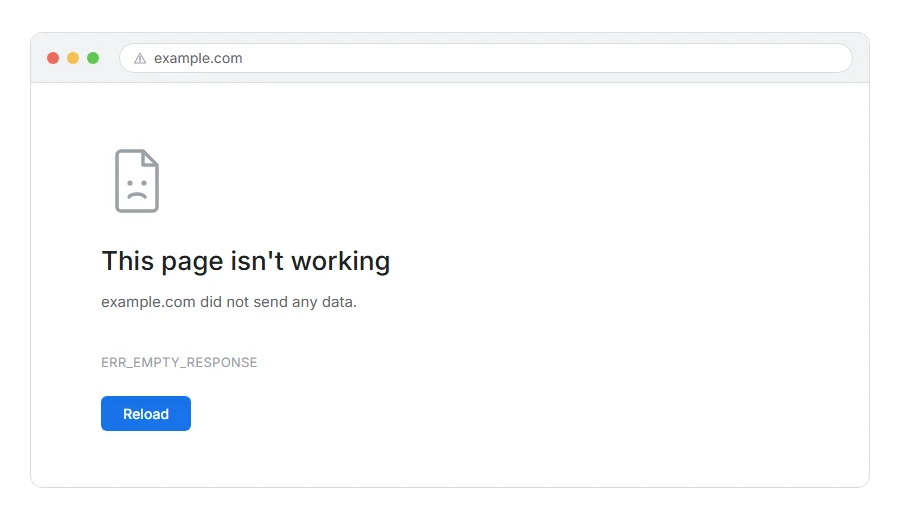
The page will not load and Chrome tells you the site did not send any data, with ERR_EMPTY_RESPONSE in the details.
In one line: the server took your request, closed the connection, and sent nothing at all.
Think of it like handing your order to a waiter who nods, walks into the kitchen, and never comes back. The restaurant is open. Somebody took the order. Nothing arrived.
That is a specific and useful clue. It is not a name problem, not a routing problem, and not a refusal. Something accepted the request and then died halfway through answering it.
Do not worry, you are not alone. On a WordPress site this nearly always means the page ran out of something partway through building, and I am here to help you find which.
Where it actually breaks
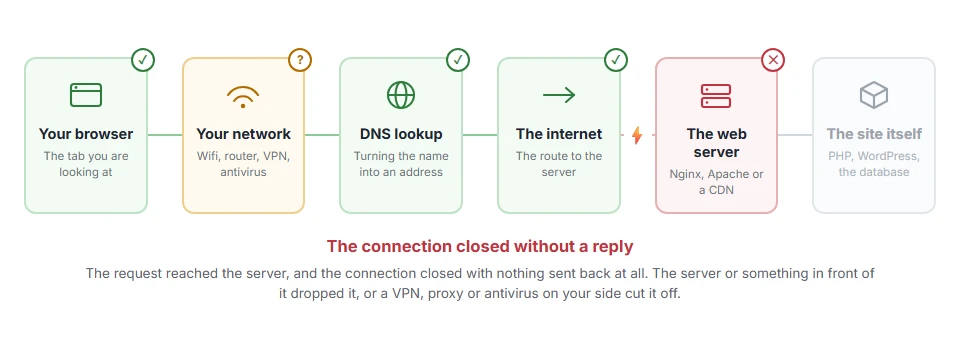
Every page you open makes the same journey. Knowing which step this error stops at tells you which half of the list below is worth your time, because the green steps are already proven to be working.
Step 1: Check whether it is one page or everything
Thirty seconds, and it narrows things a lot.
Try the home page and a couple of others. If only one page gives an empty response and the rest are fine, that page is doing something expensive. If every page fails, the problem is site wide.
When this will not help: if the site is not yours, you cannot do much beyond steps 2 and 3. The site owner has to fix it.
Step 2: Try a private window and clear the cache
A stale cached response can produce this on repeat visits.
Open a private window first, because if it works there you know the cache is involved without clearing anything.
When this will not help: if the private window fails too, nothing is cached wrongly and the cause is at the server.
Step 3: Turn off your VPN, extensions and antivirus
Anything sitting between you and the server can swallow a response.
Turn off the VPN, test in a private window with extensions disabled, and switch off antivirus web filtering for two minutes.
When this will not help: if the page fails on your phone over mobile data as well, nothing on your computer is responsible. Skip to the site owner section.
If it is your own site
This is where the real answers are, because an empty response means your server is dropping the connection before it replies.
Cause 1: Memory limit
The most common one. The page starts building, runs out of memory, and the server kills PHP before it sends anything.
Add this to wp-config.php, above the “stop editing” line:
define( 'WP_MEMORY_LIMIT', '256M' );Then test. If the page loads, memory was the cause and the real question is why that page needed so much.
When this will not help: many hosts cap memory at account level and will quietly ignore that line. If it makes no difference, ask your host what your real limit is rather than assuming the setting took.
Cause 2: Maximum execution time
If the page takes longer than PHP is allowed to run, it is killed partway through.
This is the likely cause when the empty response arrives after a long wait rather than immediately, and when it happens on an import, an export, a big search or a bulk action.
Ask your host to raise max_execution_time, or split the job into smaller pieces.
When this will not help: raising the time limit on a job that takes ten minutes only moves the problem. If something genuinely takes that long, it belongs in a background job rather than a page load.
Cause 3: A fatal error with display switched off
If PHP hits a fatal error and error display is off, some setups send nothing rather than a message. From the browser it looks identical to running out of memory.
Turn the log on and find out. In wp-config.php:
define( 'WP_DEBUG', true );
define( 'WP_DEBUG_LOG', true );
define( 'WP_DEBUG_DISPLAY', false );
Load the failing page, then read wp-content/debug.log. The file and line will be named.
When this will not help: turn these off again once you have your answer. Leaving debugging on a live site is untidy and can expose paths.
Cause 4: A plugin or theme
If the log named one, you are done. If not, deactivate everything and test, then switch them back on one at a time.
If you cannot reach the dashboard, rename wp-content/plugins to plugins-off over FTP, which switches them all off at once.
When this will not help: if the empty response happens with every plugin off and a default theme active, the cause is server level, not site level.
Cause 5: The server itself
If nothing above found it, the process is being killed from outside PHP.
A crashed web server process, an out of memory kill at the operating system level, or a mod_security rule that drops the response can all do this. None of them are visible from inside WordPress.
Message your host with the exact page and time, say you are getting ERR_EMPTY_RESPONSE, and ask them to check the PHP-FPM and server error logs for that moment.
Empty response, reset and timed out
They look similar in a browser and mean different things, so it is worth being precise.
Empty response means the connection was accepted and closed with no data. Something died while answering.
Reset means the connection was cut off suddenly, at any point, even before any data was sent.
Timed out means nothing came back at all before the browser stopped waiting.
Empty response is the one that points most directly at the application rather than the network, which is why the fixes above are almost all server side.
Frequently asked questions
Why does it happen on only one page? Because that page is doing something the others are not. A big query, a heavy plugin, an export. That is a strong clue on its own.
It happens after a long wait. Does that matter? Yes, a great deal. A long wait points at the execution time limit. An instant failure points at memory or a fatal error.
Could it be my browser? Rarely, but steps 2 and 3 rule it out in two minutes, so do them before touching the server.
Is my data at risk? For a normal page, no. The page failed to build and nothing was lost. An import or bulk action that was cut off may be half done, though, so check what it changed before you run it again.
If you have any issues, you can ask me via comment, and I will love to help you out.
When the page gives up in a different way
Error names are easy to mix up, and the wrong page wastes your time. If what you are looking at is not quite what this one describes, one of these will be closer.
- ERR_CONNECTION_CLOSED, the connection ended rather than returning an empty answer.
- 431 Request Header Fields Too Large, the request never got through because your cookies grew too big.
- ERR_BLOCKED_BY_CLIENT, part of the page stays blank because something on your own computer, usually an ad blocker, stopped it loading.
